

Add your pharmacy details, load medicines from the built-in list of 25,450+ brands, receive stock from suppliers, then sell at the counter, track credit and close the day with the cash memo reports.
In this guide 8 sections
This guide walks owners, managers and staff of pharmacies and drug stores through every step, using the real screens of the Hospify Pro pharmacy demo. You can follow along in the live pharmacy demo without signing up.
Who this is for: pharmacies and drug stores. What you need: a computer or tablet with a browser, a barcode scanner if you have one, and a thermal printer for cash memos.
Part 1: Set up your pharmacy
Step 1: Send a sign-up request
First, go to hospify dot pro, slash signup. Choose Pharmacy, then fill in your name, phone, email and the web address you want. The team sets up your private database and sends your login, usually within one working day. The first fourteen days are free.
- hospify.pro/signup
- Choose Pharmacy
- 14 days free · no card

Step 2: Name, logo and print header
After you sign in, open Settings, then Profile and printing. Add your pharmacy’s name, logo, address and drug licence line. They print on every cash memo.
- Settings → Profile & printing
- Logo · address · licence
- Prints on every cash memo

Step 3: Pharmacy settings
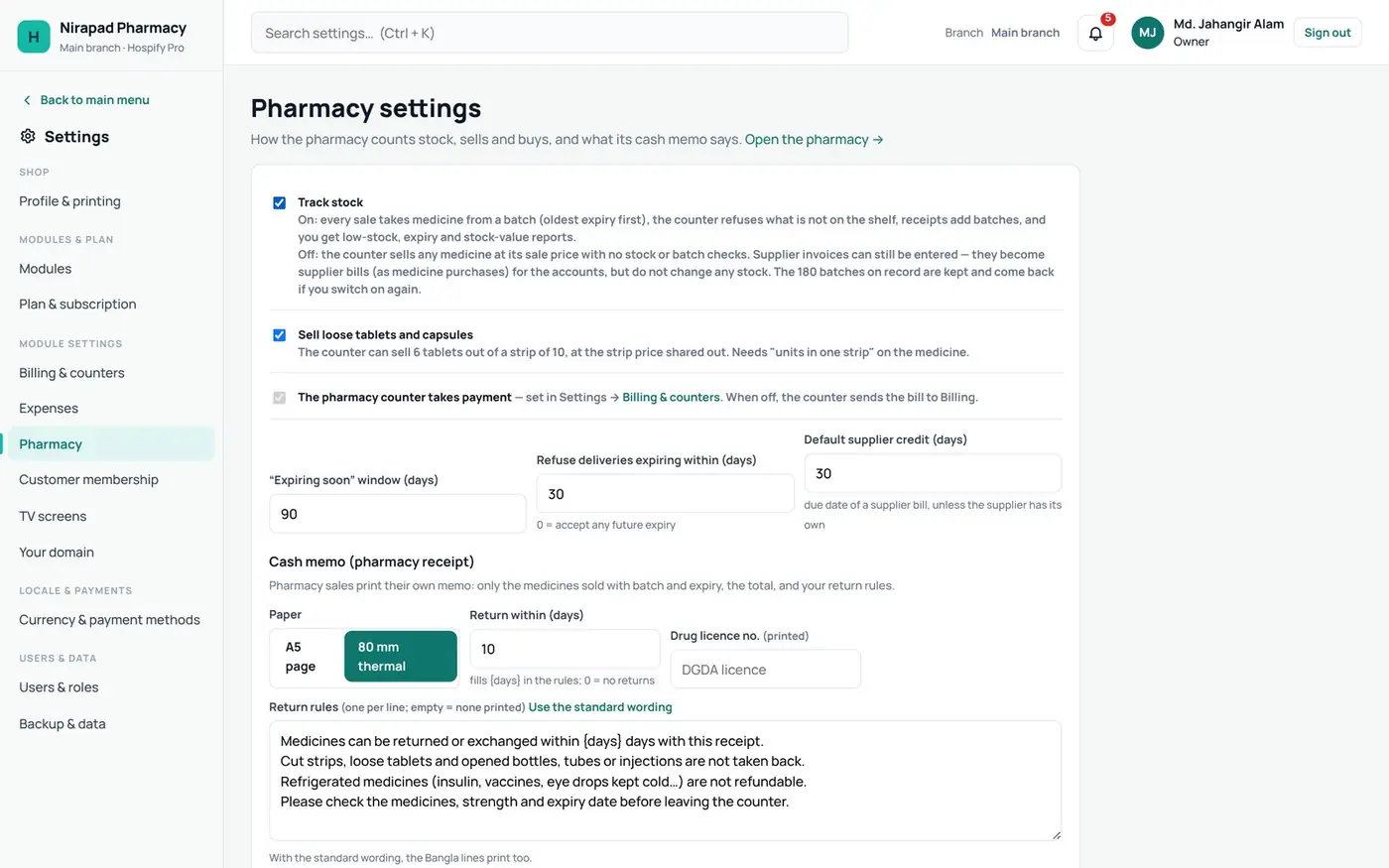
In Pharmacy settings, choose how you work. Track stock by batch, so every sale takes the oldest expiry first. Allow loose tablets from a strip if you sell them, and write the return policy that prints on the cash memo.
- Track stock by batch
- Sell loose tablets
- Return policy on the memo
Step 4: Staff logins
In Users and roles, give each staff member their own login and role, such as pharmacist or cashier. Each person sees only the screens they need.
- Settings → Users & roles
- Pharmacist · Cashier
- One login per person

Part 2: Medicines, suppliers and stock
Step 5: Your medicine list
Open Medicines. Each medicine has its M R P, sale price, cost, VAT and supplier. You can load a ready list or add your own, and the counter never sells above M R P.
- MRP · sale price · cost · VAT
- Selling above MRP is blocked
- Load a list or add one

Step 6: Suppliers and dues
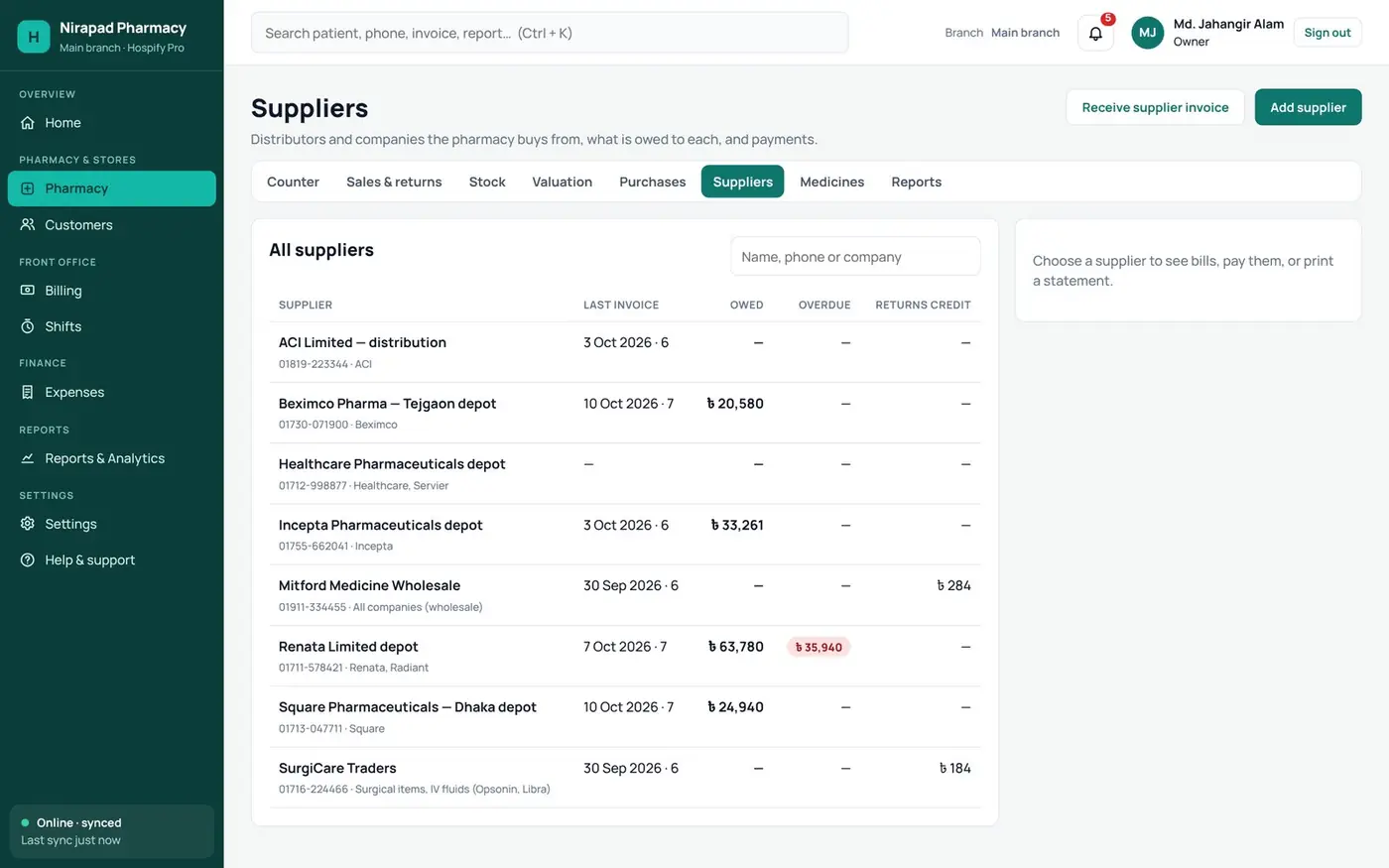
Under Suppliers, add the distributors you buy from. Hospify Pro shows what you owe each one, what is overdue, and any credit from returns.
- Every distributor and company
- What you owe, what’s overdue
- Payments and returns credit
Step 7: Receive stock
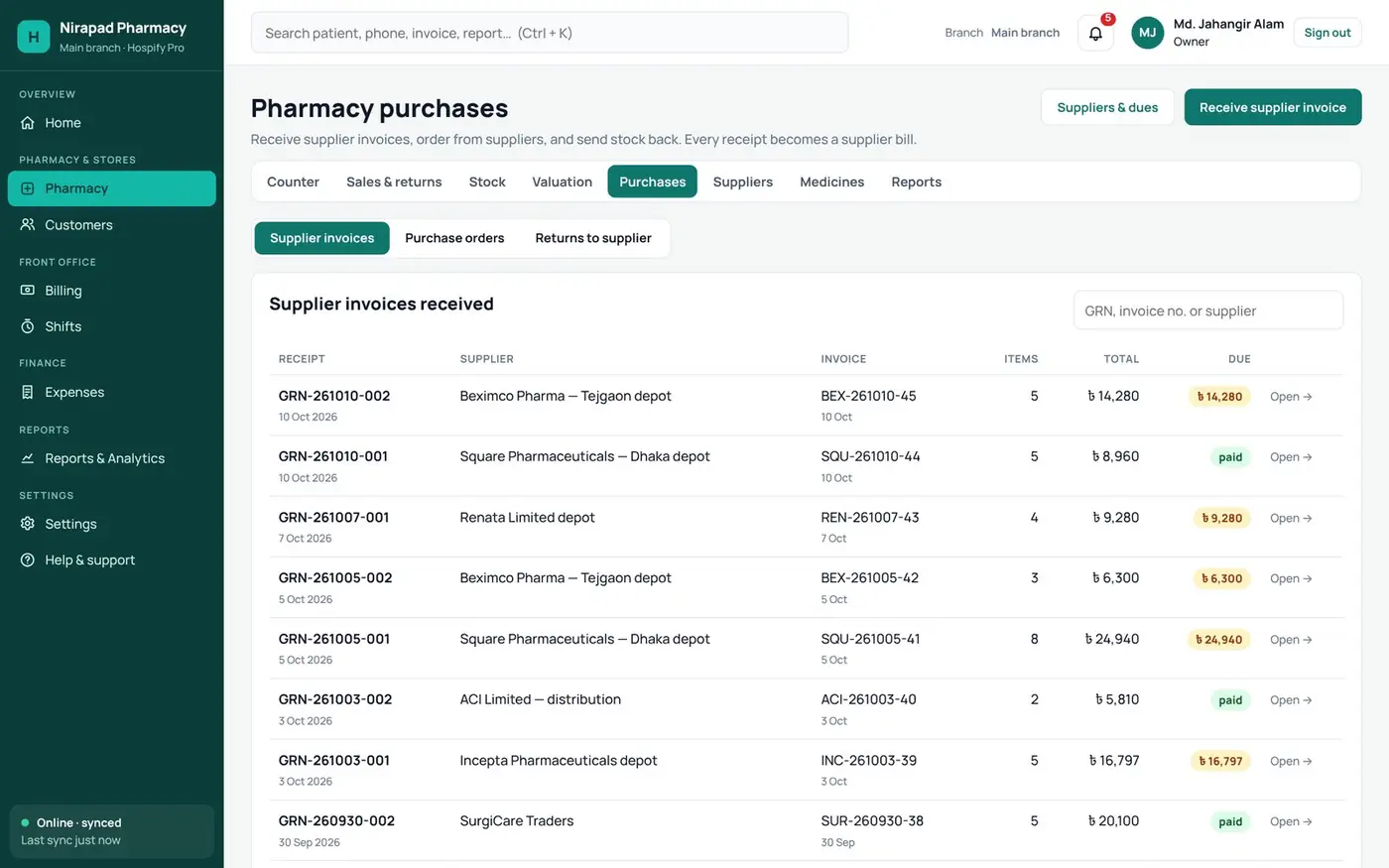
When stock arrives, press Receive supplier invoice. Enter each medicine with its batch, expiry, quantity and cost. The stock goes on the shelf, and the invoice becomes a supplier bill automatically.
- Receive supplier invoice
- Batch · expiry · quantity · cost
- Becomes a supplier bill
Step 8: Watch expiry
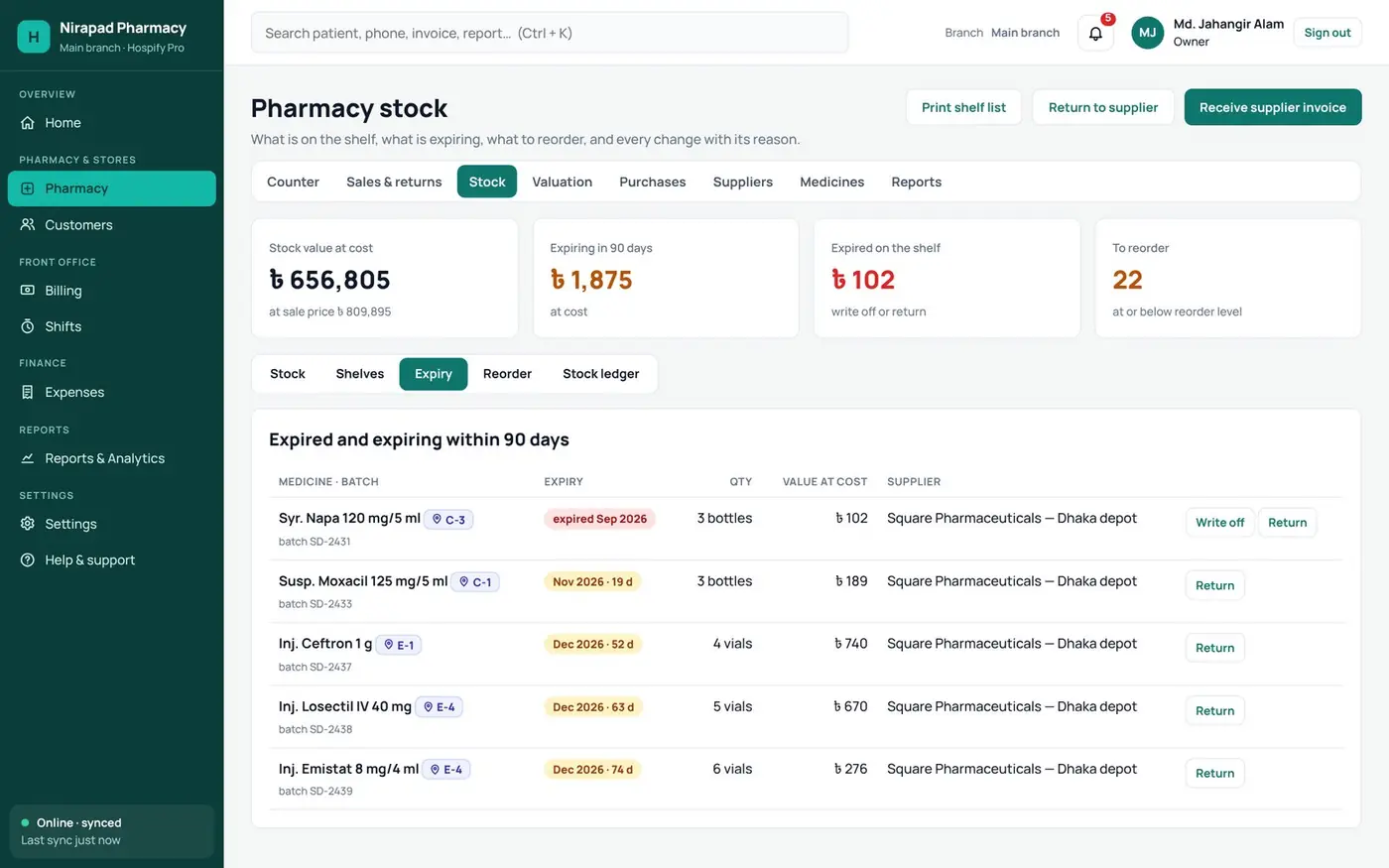
The Expiry tab lists every batch expiring within ninety days, and anything already expired. Write it off, or return it to the supplier, in one click.
- Stock → Expiry
- Expiring within 90 days
- Write off or return
Step 9: Reorder in time
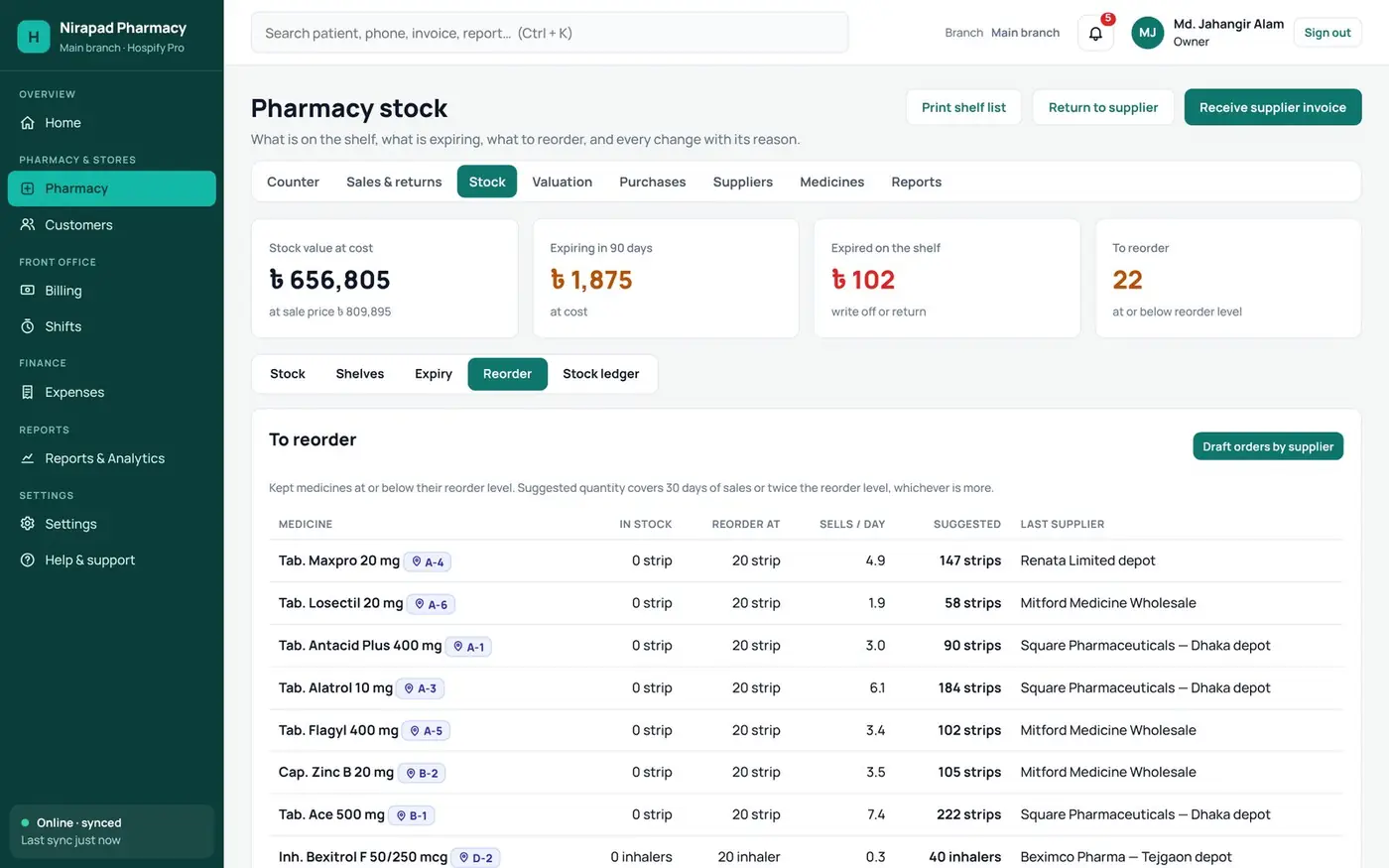
The Reorder tab shows medicines at or below their reorder level, with a suggested quantity and the last supplier, so you never run out.
- Stock → Reorder
- At or below reorder level
- Suggested quantity
Step 10: Print the shelf list
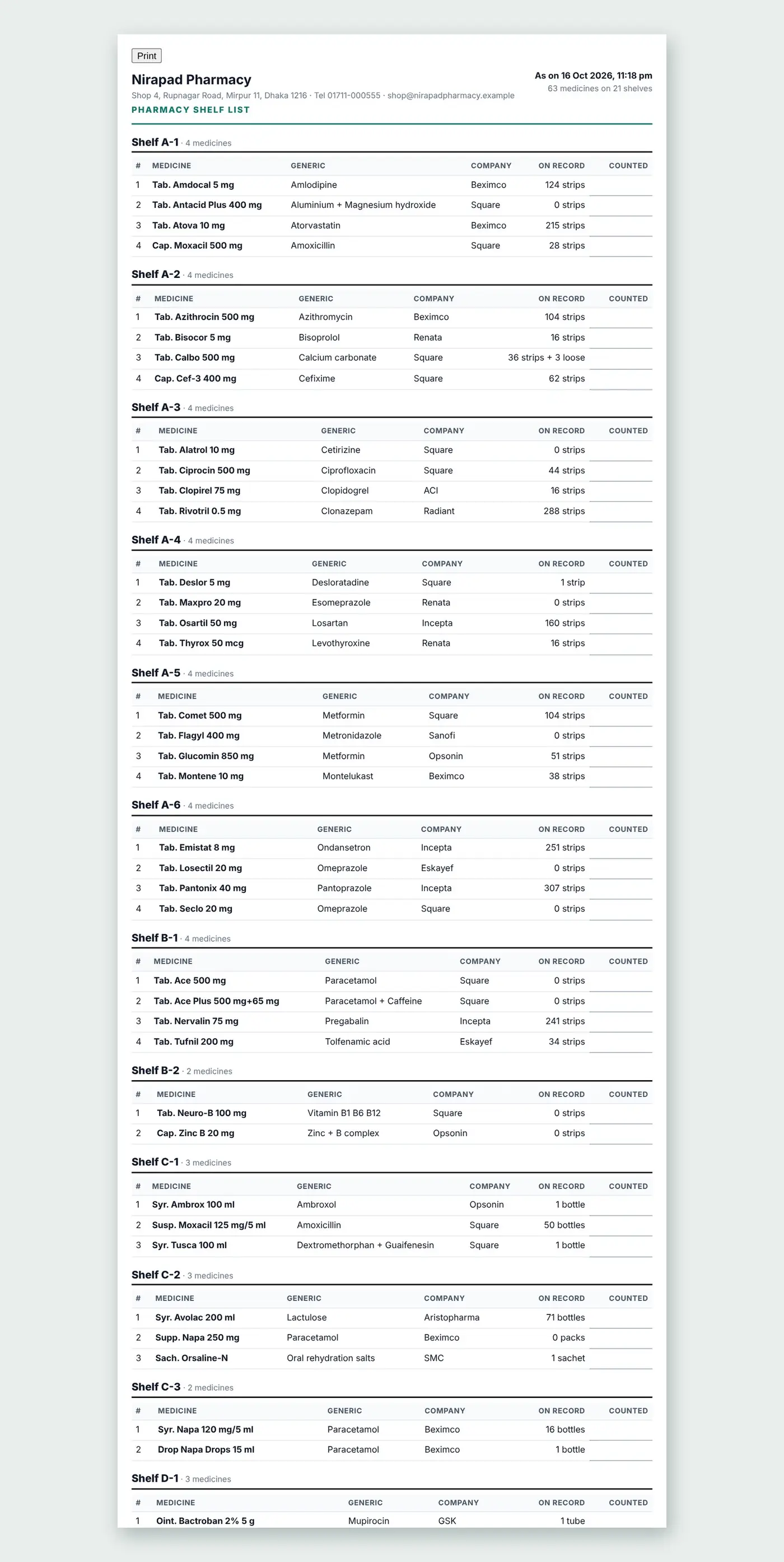
For stock counting, print the shelf list. It shows every medicine, shelf by shelf.
- Shelf by shelf
- For stock counting
- A4 print
Part 3: Sell at the counter
Step 11: Find the medicine
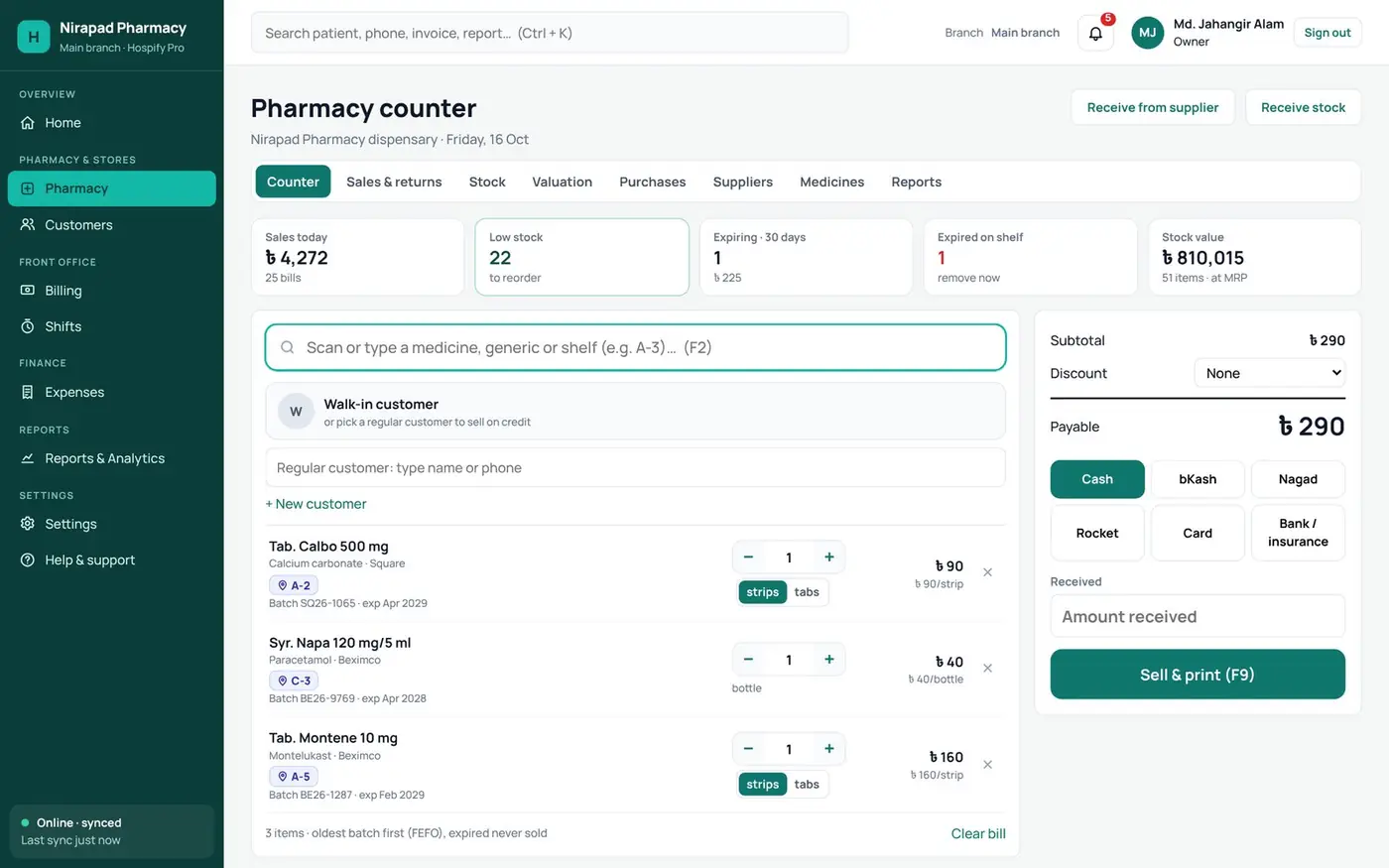
At the counter, type a medicine name, generic name or shelf, or scan its barcode, and press Enter.
- Pharmacy → Counter
- Name, generic, shelf or barcode
- Press Enter to add

Step 12: Take payment
Each medicine is added from the oldest batch first, and expired stock is never sold. Choose cash, bKash, Nagad or card, then press Sell and print.
- Oldest batch first (FEFO)
- Cash · bKash · Nagad · Card
- Sell & print (F9)
Step 13: The cash memo
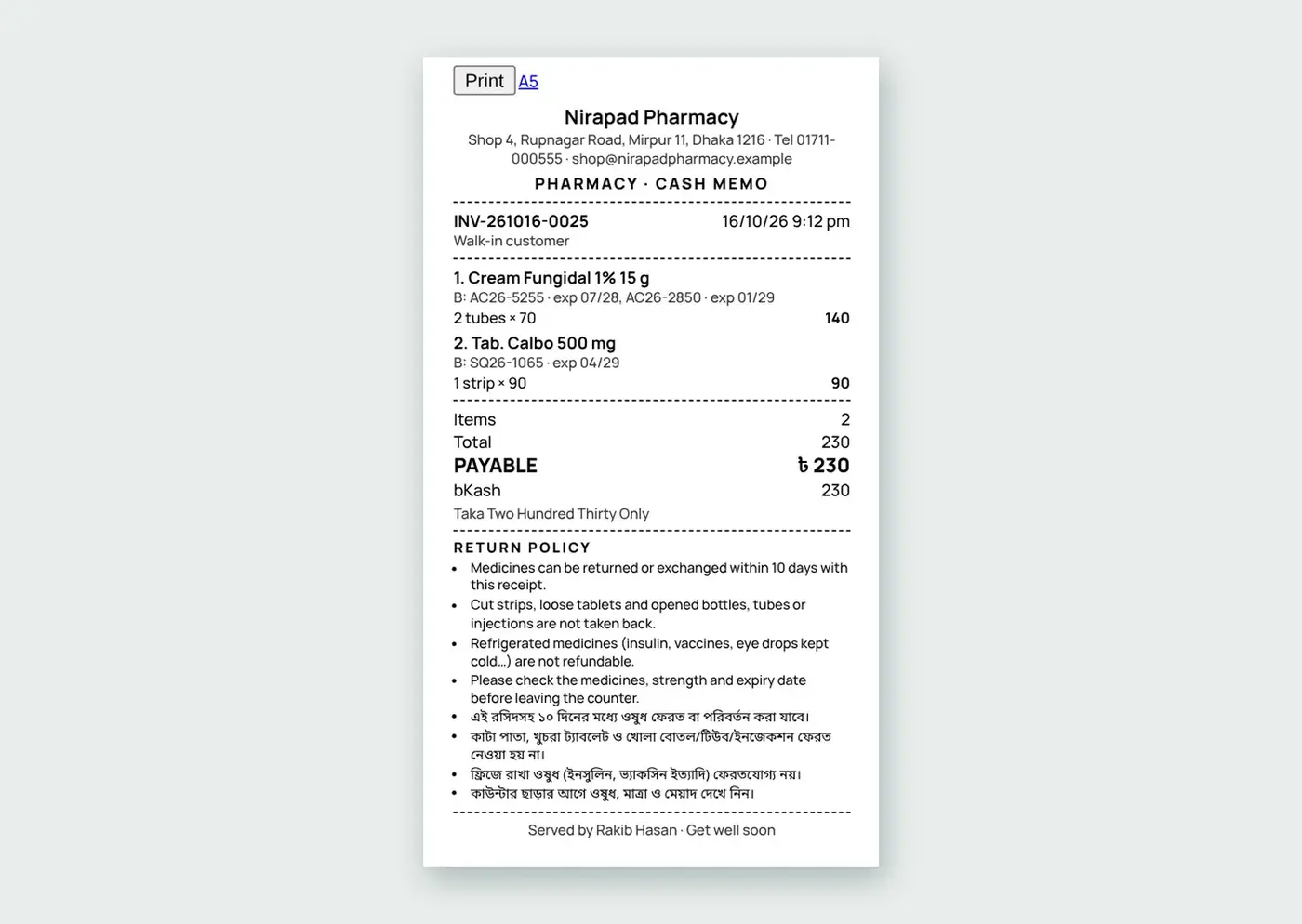
The cash memo prints on an eighty millimetre printer. It lists every medicine with its batch and expiry, and your return policy.
- 80 mm thermal memo
- Batch and expiry on every line
- Return policy printed
Step 14: A5 memo option
Prefer a bigger page? The same memo prints on A5, and any bill can be reprinted later.
- A5 or 80 mm
- Same details
- Reprint any time

Part 4: Customers and credit
Step 15: Regular customers
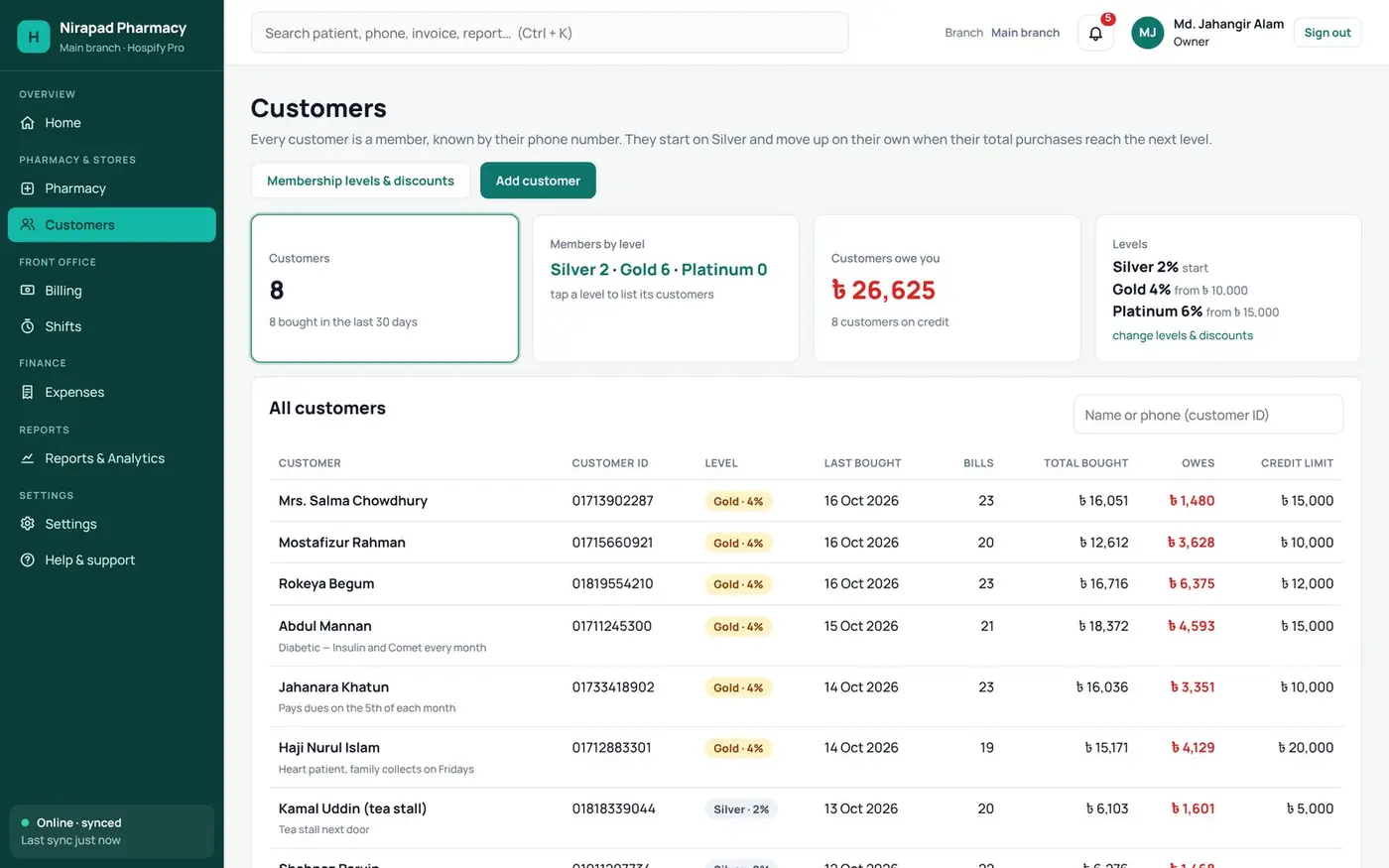
Regular customers are known by their phone number. They move up from Silver to Gold and Platinum as they buy more, and get a discount at each level. You can sell on credit up to each customer’s limit.
- Known by phone number
- Silver · Gold · Platinum
- Credit limit per customer
Step 16: Collect what’s owed
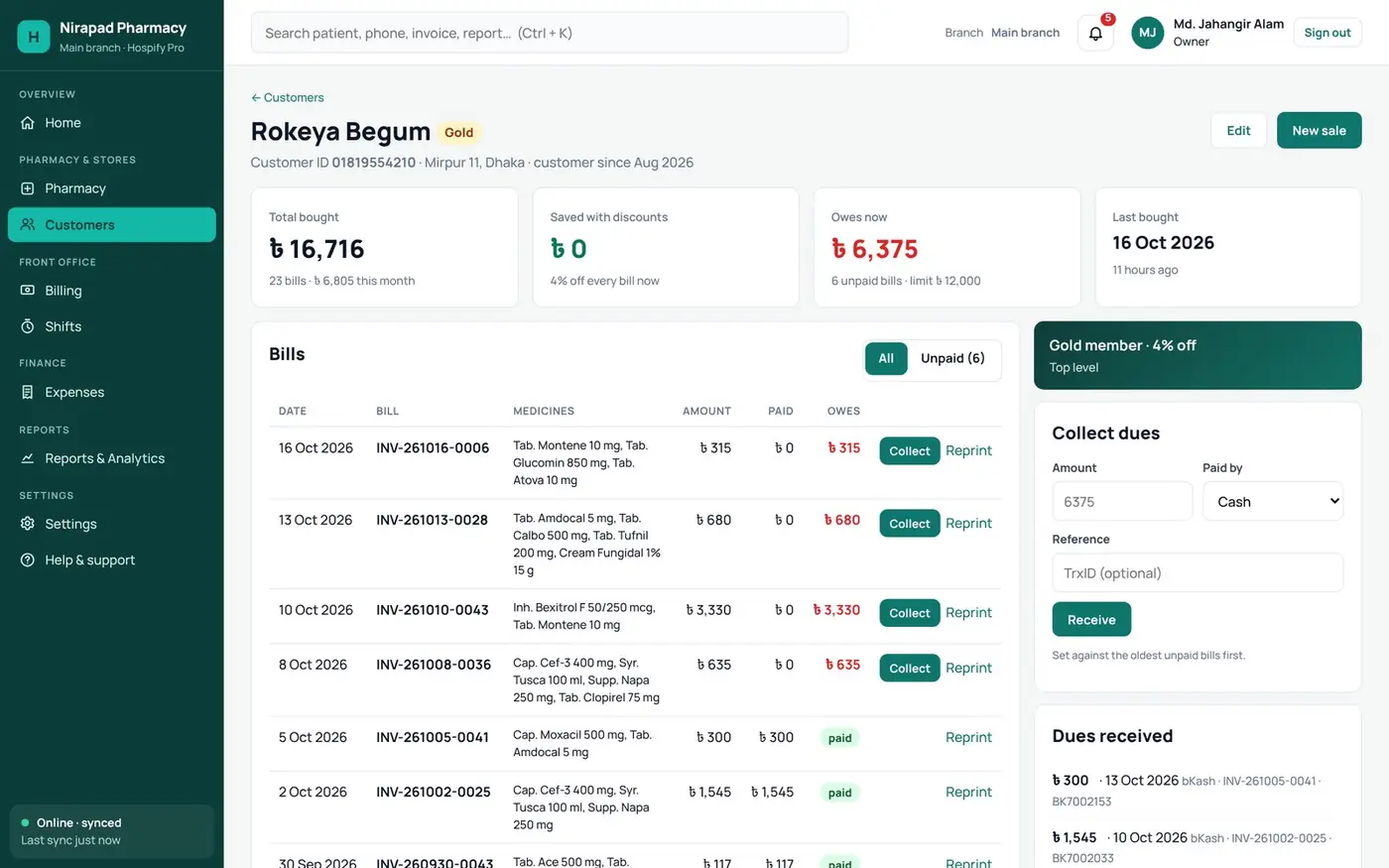
Open a customer to see every bill and what they still owe. Press Collect when they pay.
- Every unpaid bill
- Collect · Reprint
- Credit limit shown
Step 17: Sales and returns
Sales and returns lists every bill, which batch was sold, and any medicine brought back.
- Every bill and batch
- Customer returns
- Still due

Part 5: Close the day
Step 18: Close the cashier shift
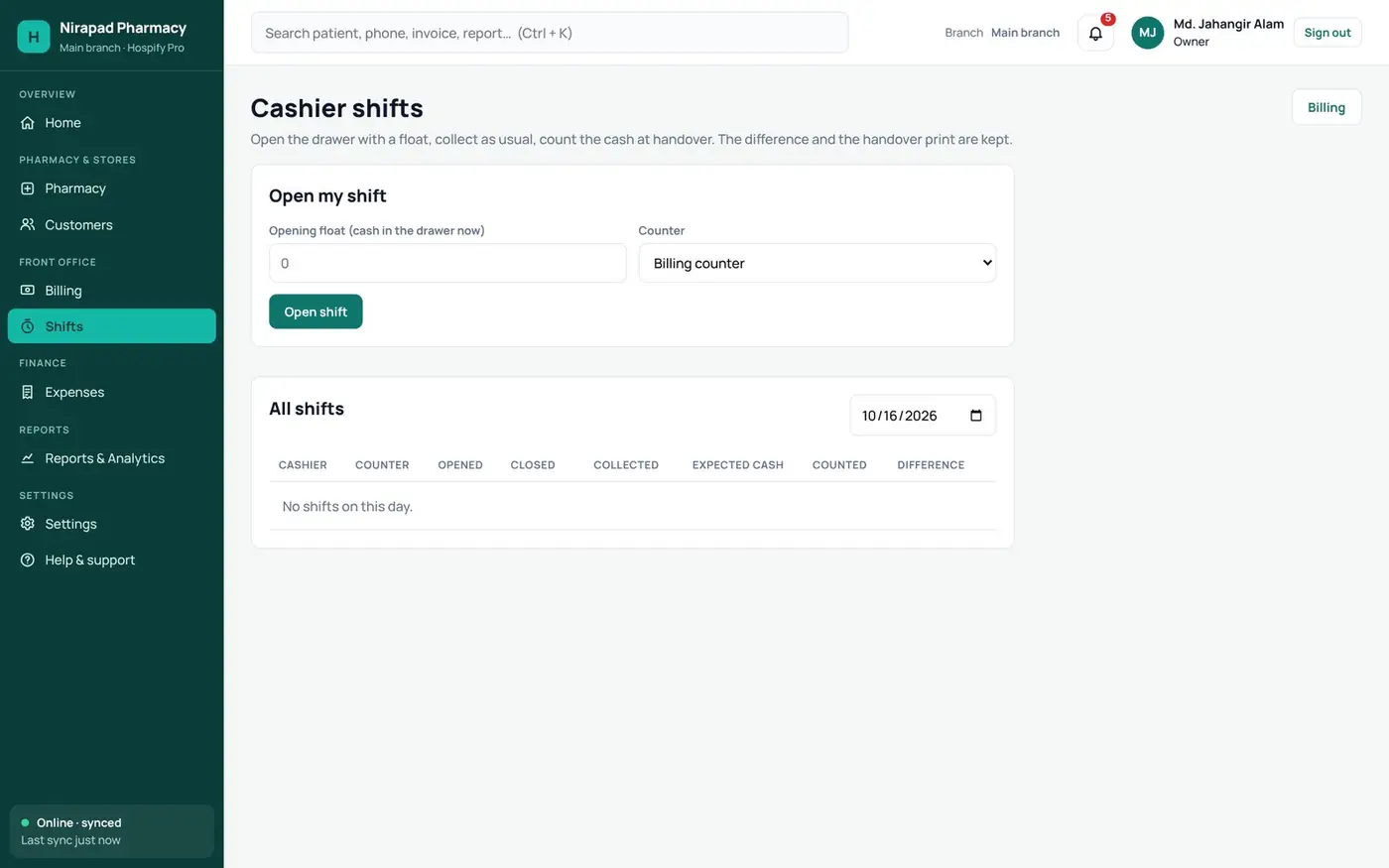
At the end of the day, each cashier closes their shift. Hospify Pro shows the expected cash, the counted cash, and any difference.
- Open with a float
- Count at handover
- Expected vs counted
Step 19: Pharmacy reports
Pharmacy reports show sales, the cost of medicines sold, your gross margin, top sellers, and what you owe suppliers.
- Sales · cost · margin
- Top sellers
- Owed to suppliers

Step 20: Download any report
Reports and Analytics shows daily collection by payment method and dues. Download any report as Excel, or print it as a P D F.
- Revenue · collection · dues
- By payment method
- Excel or PDF

Try it yourself
Open the live pharmacy demo, or start your free 14-day trial.
Tips and common questions
Can I try it before I sign up?
Yes. Open the [live pharmacy demo](/live-demo/?type=pharmacy) and click around with sample data. No sign-up is needed.
What if the internet goes down?
Hospify Pro keeps working offline. Your work carries on and everything syncs when the connection is back.
Who can see patient data?
Only your own staff, and each one sees only the screens their role allows. Every facility has its own private, encrypted database.
How do I get started?
Send a sign-up request at hospify.pro/signup. The first 14 days are free and no card is needed.
Where do I get help?
Open Help & support inside the software, or reach the Hospify Pro team on WhatsApp at +44 7782 256307 or at [email protected].
