

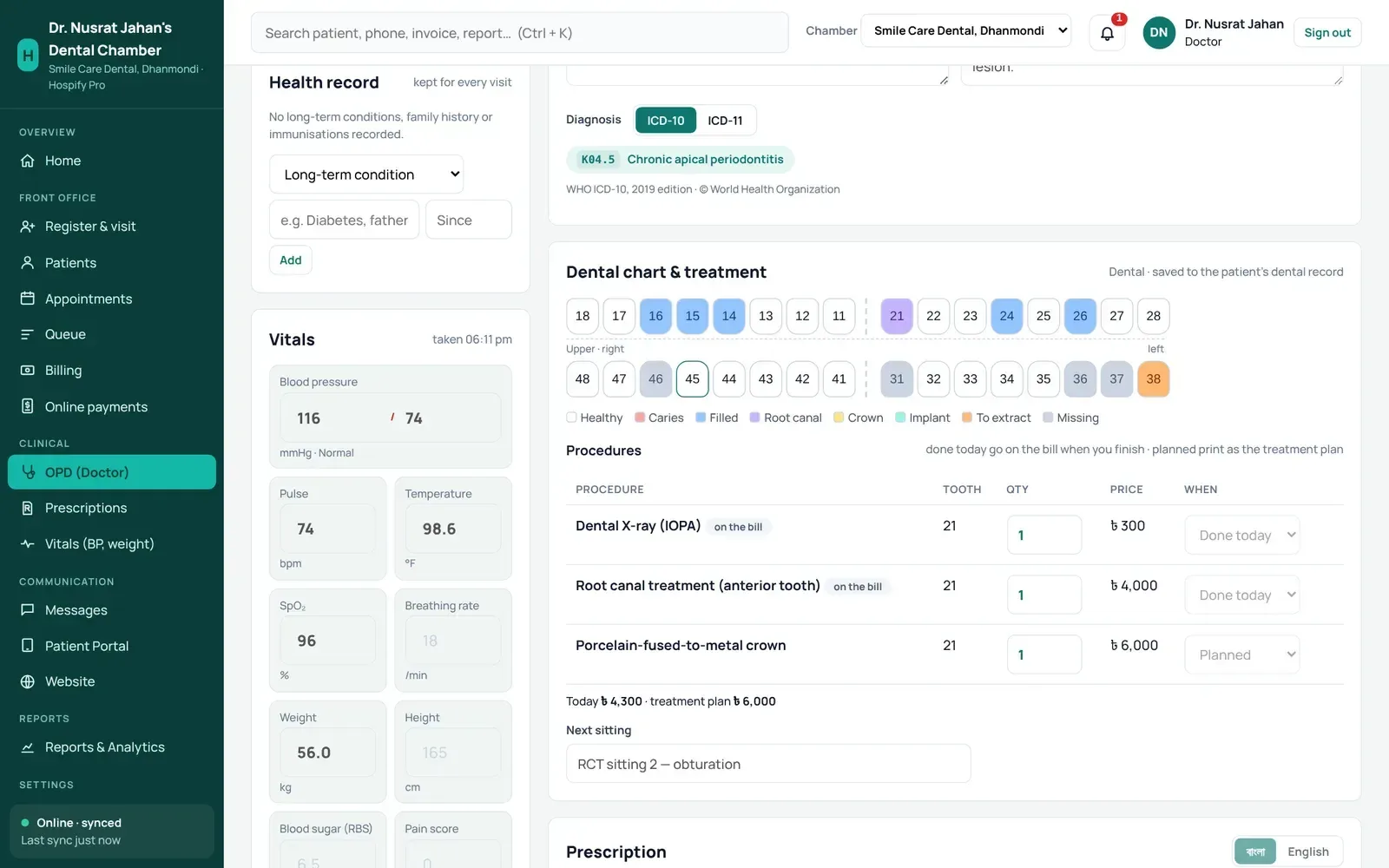
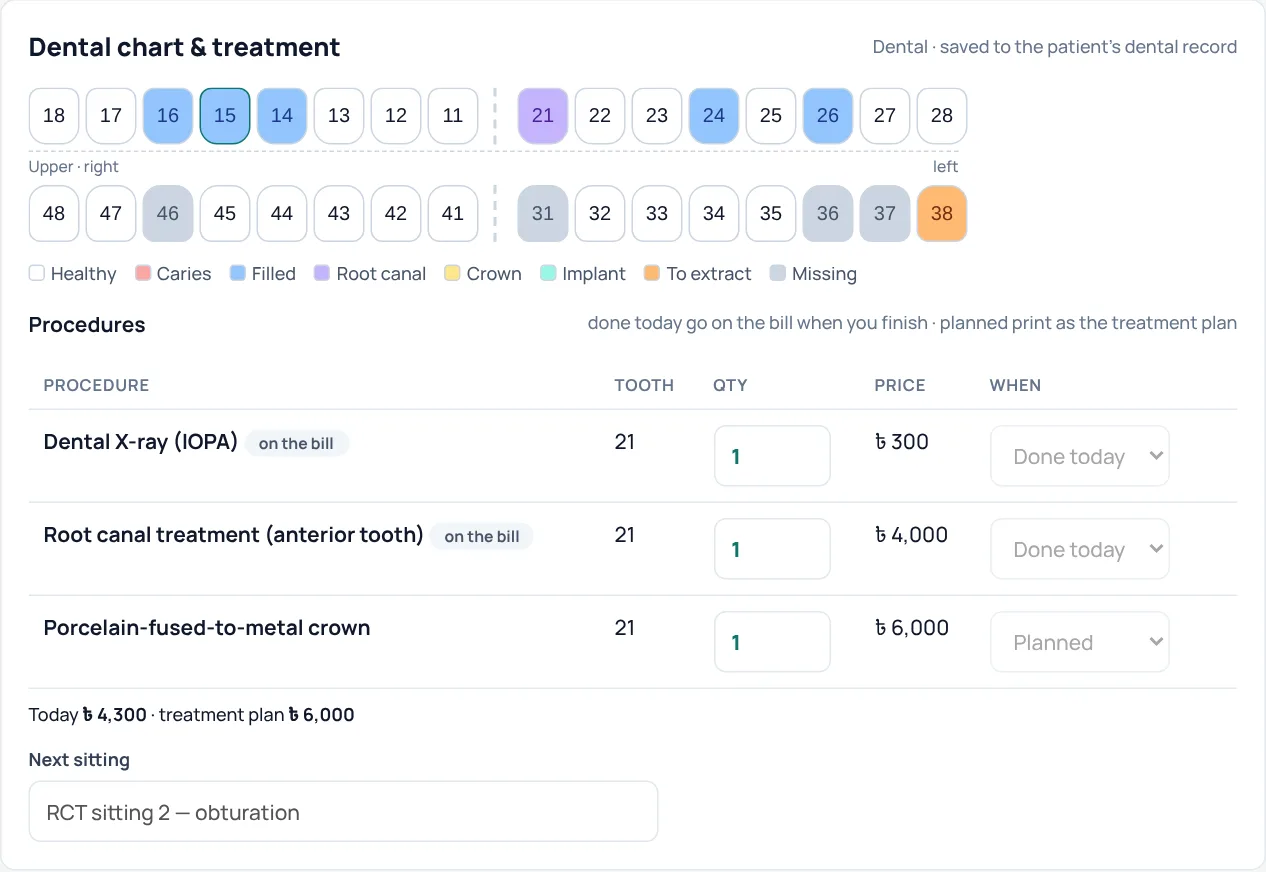
Choose Dental as your chamber type and every prescription gets a tooth chart. Tap a tooth to mark caries, filling, root canal, crown, implant, to extract or missing, then add procedures for that tooth. Procedures done today go on the bill when you finish; planned ones print as the treatment plan with their cost. The chart stays on the patient's dental record for the next visit.
In this guide 8 sections
This guide shows the parts of Hospify Pro that are only for dentists. For setting up your chamber, fees, sitting times and assistant, follow the doctor’s chamber guide first. Everything there applies to you.
You can try every step in the live dental chamber demo, which has three months of sample patients, tooth charts and treatment plans.
Step 1: Choose Dental as your chamber type
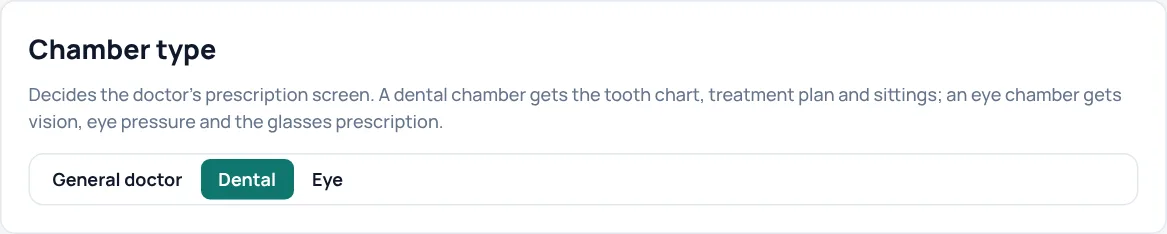
If you chose Dental chamber when you signed up, this is already done.
Otherwise open Settings → Profile & printing and, under Chamber type, press Dental. Your prescription screen gets the tooth chart straight away. Common dental procedures (X-ray, fillings, root canal, crowns, scaling, extraction, braces) are already in your price list; check the prices in Settings → Departments & services and set your own.
In a hospital or clinic: open Settings → Departments & services, edit the dental department and set Workspace to Dental (tooth chart).
Step 2: Open the patient
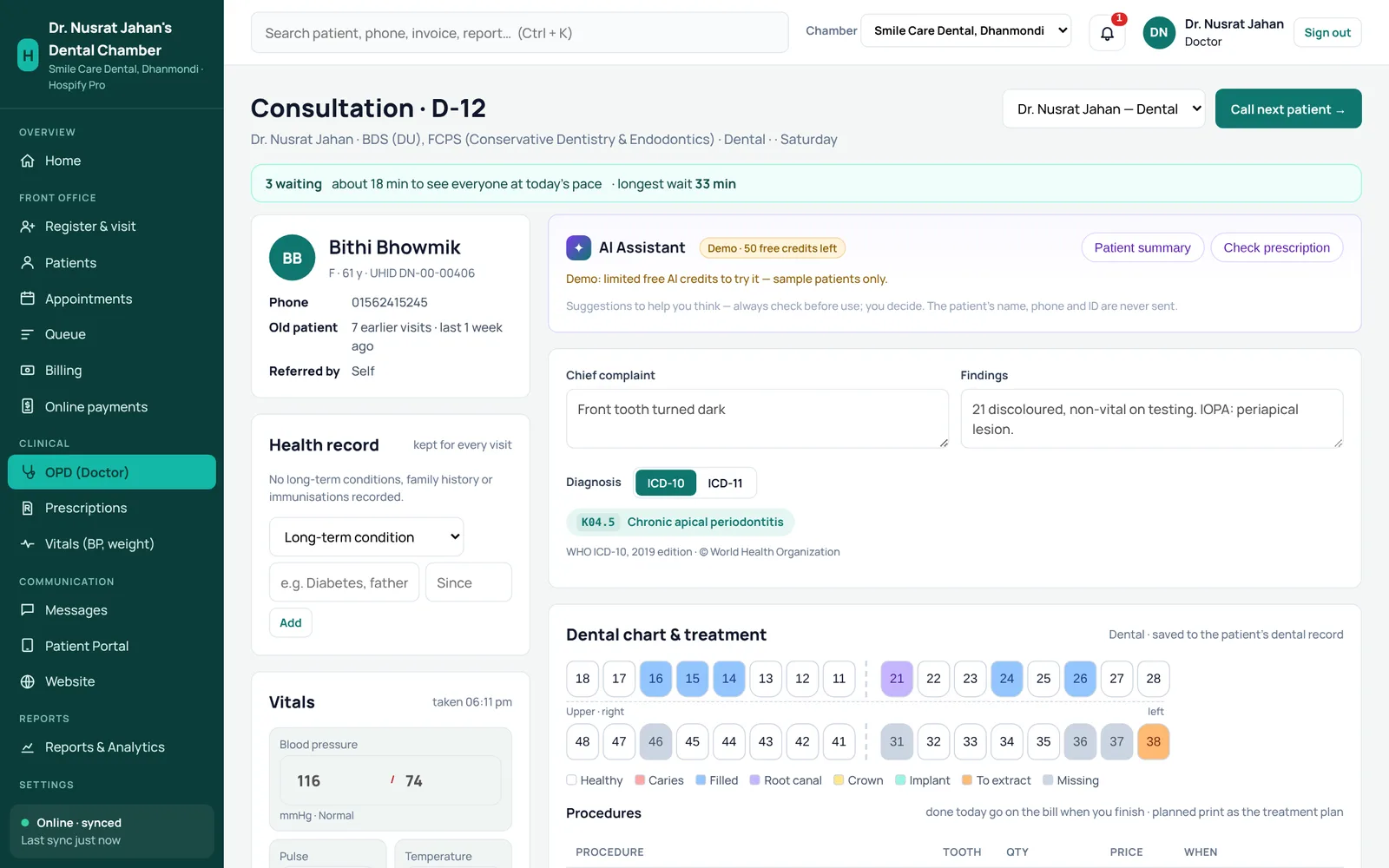
Your home page works the same as any chamber: today’s chambers, serials, collection and prescriptions. Press Start seeing patients, then Call next patient.
Type the chief complaint, findings and diagnosis as usual. Dental diagnoses such as K02 Dental caries, K04.5 Chronic apical periodontitis or K05 Gingivitis are in the ICD-10 search.
Step 3: Mark the teeth on the chart
The Dental chart & treatment card sits under the diagnosis.
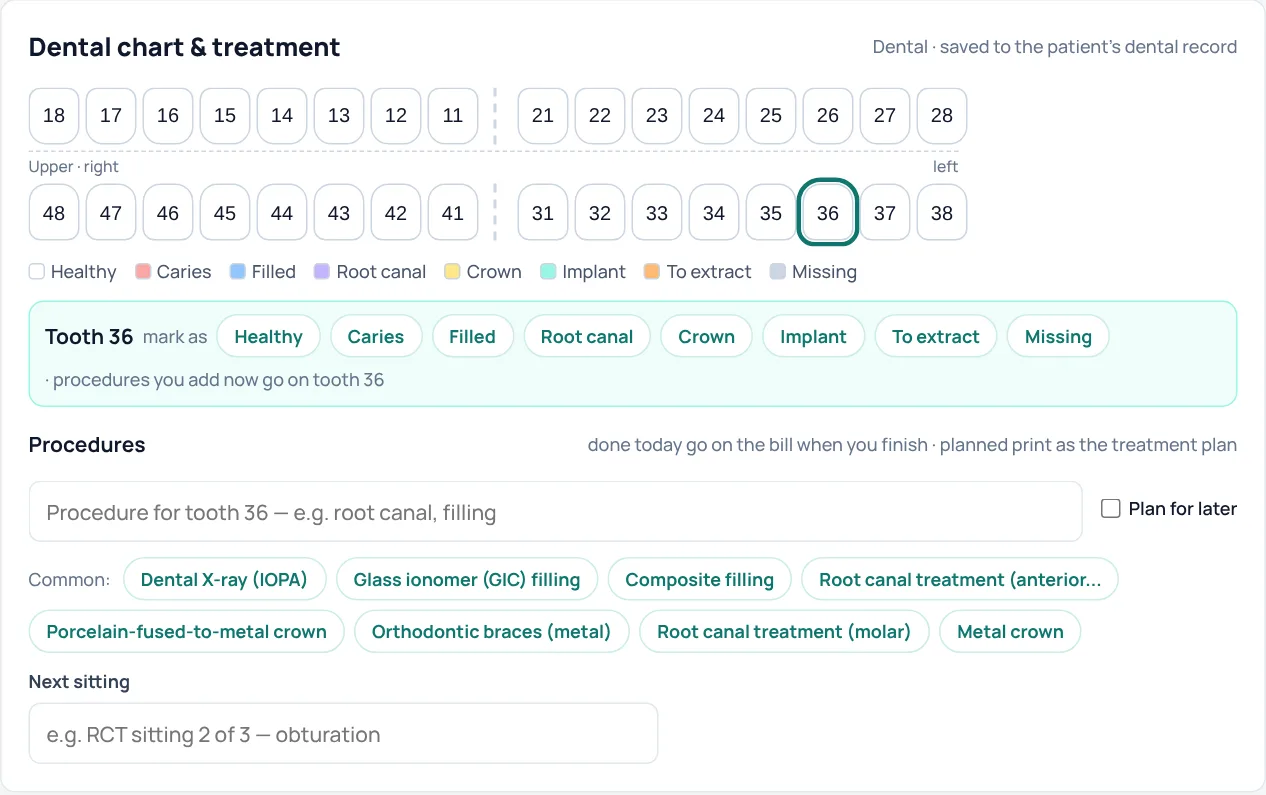
- Tap a tooth, for example 36.
- Under mark as, press Healthy, Caries, Filled, Root canal, Crown, Implant, To extract or Missing.
- The tooth takes that colour. Tap the next tooth and carry on.
The chart is saved to the patient’s dental record as you go. On the next visit it opens as you left it.
Step 4: Add procedures for the tooth
With a tooth selected, procedures you add go on that tooth.
- Tap a Common procedure (the ones you use most come first), such as Dental X-ray (IOPA), Composite filling or Root canal treatment (molar), or type one in the box.
- Tick Plan for later if it is not being done today.
- In the list, change the Qty if needed, and switch When between Done today and Planned.
Below the list you see what today costs and what the treatment plan adds up to, for example Today ৳4,300 · treatment plan ৳6,000.
- Done today procedures go on the patient’s bill automatically when you finish. Your assistant does not need to add them at the front desk.
- Planned procedures print on the prescription as the treatment plan, with the price, so the patient knows the cost before agreeing.
Step 5: Set the next sitting
Type the next sitting in Next sitting, for example RCT sitting 2 — obturation. It prints on the prescription. Add the follow-up date as usual so the patient gets a reminder.
Step 6: Medicines, advice and finish
Add medicines as on any prescription. Suggested advice appears for the diagnosis; for example after an extraction, bite on the cotton for 30–45 minutes, no rinsing or hot food for 24 hours, in Bangla or English. Tap it to add, then edit it if you like.
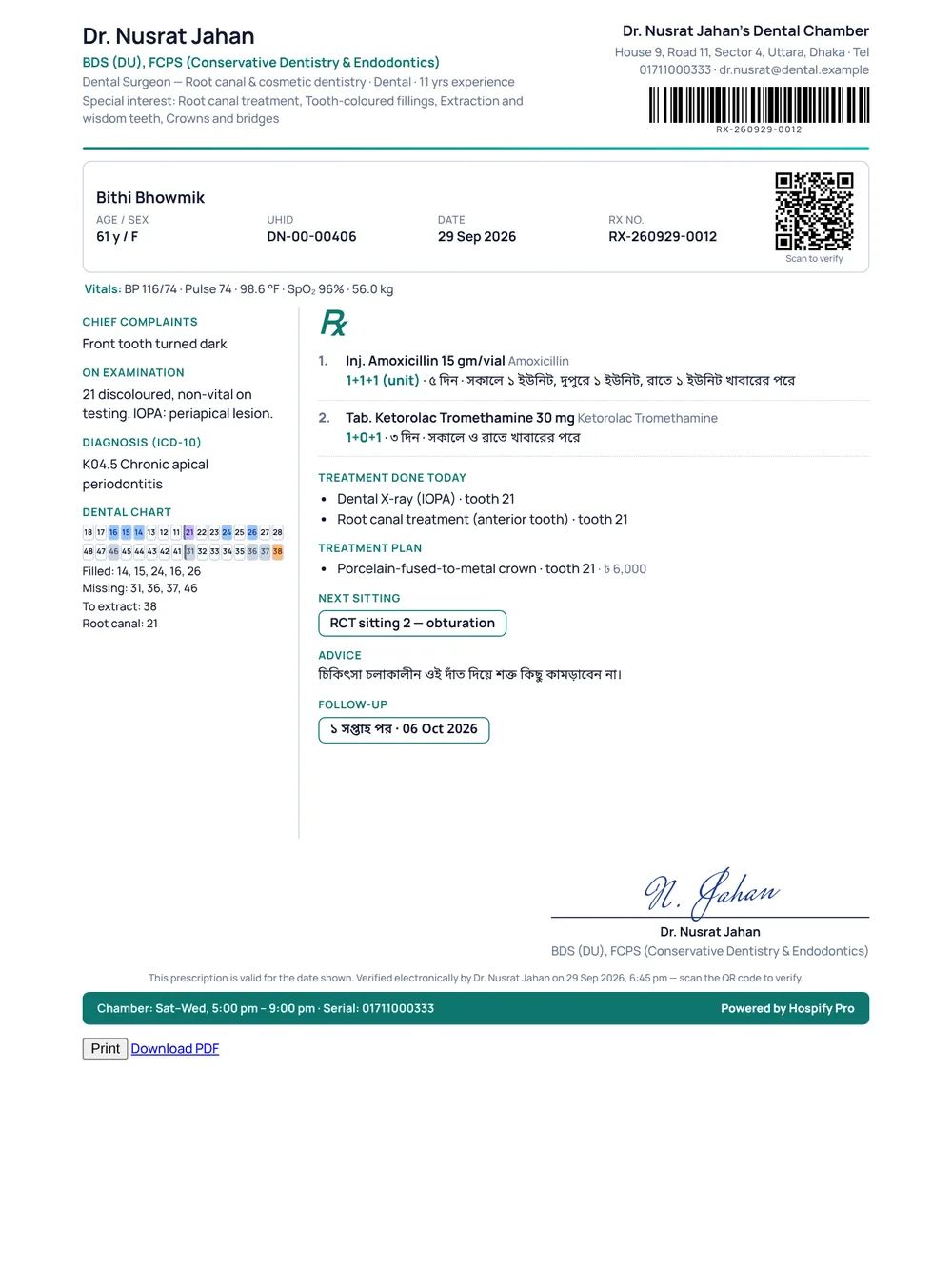
Press Finish & print prescription. The print shows:
- a small tooth chart with each tooth’s state, and a list of filled, missing and root-canal teeth;
- Treatment done today, with the tooth for each procedure;
- Treatment plan, with the tooth and cost;
- Next sitting, advice and follow-up.
Tips
- Root canals over several sittings: add Root canal treatment as done on the first sitting, and the crown as planned. On each later sitting, the chart already shows the tooth, so you only add what you did that day.
- Braces and long treatments: put the plan in at the start so the patient sees the full cost, then add each adjustment as done on the day.
- Your day at a glance: your home page shows today’s patients, collection and follow-ups. See the phone view guide to see your line and repeat prescriptions from your phone.
Tips and common questions
Which tooth numbering does the chart use?
The FDI two-digit system used in Bangladesh: 11 to 18 and 21 to 28 on top, 31 to 38 and 41 to 48 below, laid out as you face the patient.
Does the chart carry over to the next visit?
Yes. The chart is saved to the patient's dental record. On the next visit it opens as you left it, so you only change what is new.
Can I change a procedure's price for one patient?
Set your usual prices once in Settings → Departments & services. Discounts for one patient are given on the bill at the front desk.
We are a hospital with a dental department. Do our dentists get this screen?
Yes. In Settings → Departments & services, set the dental department's Workspace to Dental (tooth chart). Every doctor in that department gets the tooth chart on their prescription; other doctors keep the general screen.
Is the dental chamber priced differently?
No. It is the same Chamber plan as a general doctor's chamber, at Tk 999 a month$19 a month.
