

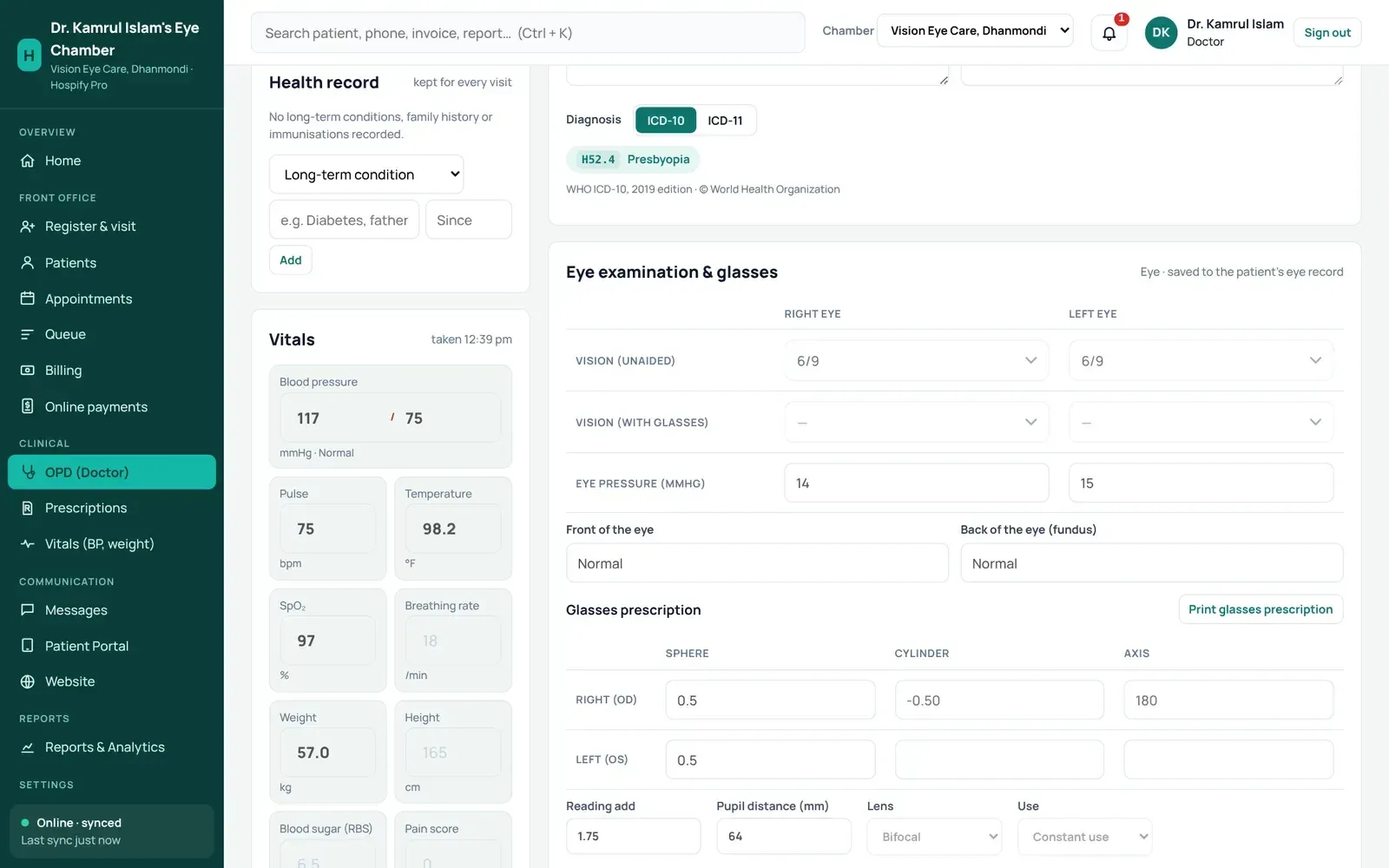
Choose Eye as your chamber type and every prescription gets an eye examination card: vision with and without glasses, eye pressure, front and back of the eye for each eye, and the glasses prescription with sphere, cylinder, axis, reading add, pupil distance and lens type. Eye drops are written for the right, left or both eyes, and the glasses prescription prints on its own page for the optician.
In this guide 9 sections
This guide shows the parts of Hospify Pro that are only for eye specialists. For setting up your chamber, fees, sitting times and assistant, follow the doctor’s chamber guide first. Everything there applies to you.
You can try every step in the live eye chamber demo, which has three months of sample patients with glasses, cataract and glaucoma follow-ups.
Step 1: Choose Eye as your chamber type
If you chose Eye chamber when you signed up, this is already done.
Otherwise open Settings → Profile & printing and, under Chamber type, press Eye. Your prescription screen gets the eye examination card straight away. Common eye procedures (refraction, tonometry, fundus examination, A-scan, YAG laser, cataract surgery) are already in your price list; check the prices in Settings → Departments & services.
In a hospital or clinic: open Settings → Departments & services, edit the eye department and set Workspace to Eye (vision and refraction).
Step 2: Record vision and eye pressure
Open the patient from OPD (Doctor) with Call next patient. Under the diagnosis you find the Eye examination & glasses card, with a column for each eye.
- Vision (unaided) and Vision (with glasses): pick from 6/6 to 6/60, CF, HM, PL or NPL.
- Eye pressure (mmHg): type the reading for each eye.
- Front of the eye and Back of the eye (fundus): type your findings, or leave Normal.
Everything is saved to the patient’s eye record as you type.
Step 3: Write the glasses prescription
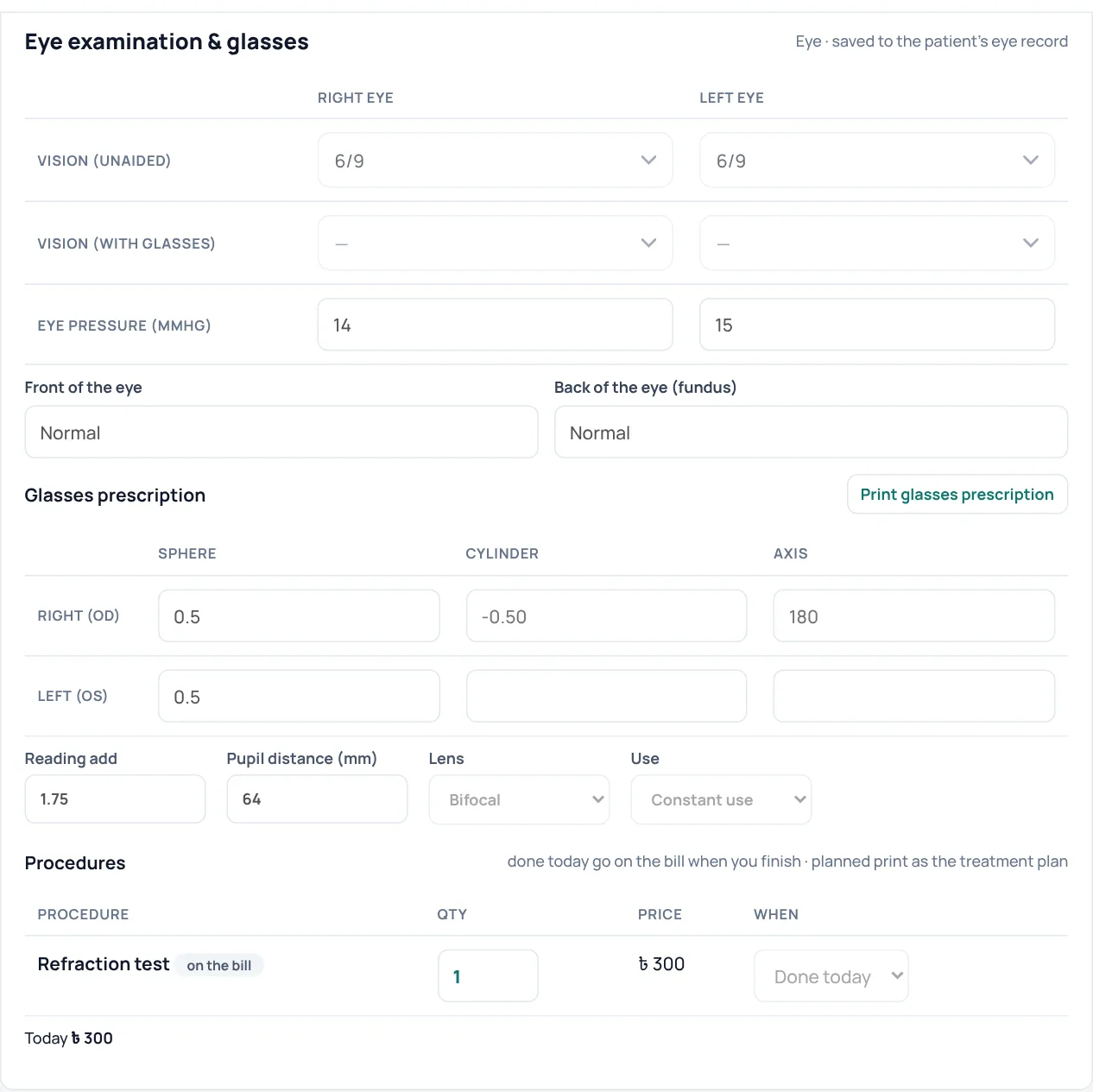
In Glasses prescription:
- Type Sphere, Cylinder and Axis for the right eye (OD) and the left eye (OS). Plus and minus signs are added for you.
- Add the Reading add and the Pupil distance (mm).
- Choose the Lens: single vision, bifocal, progressive or reading only.
- Choose the Use: constant use, distance only or near (reading) only.
Step 4: Add tests and procedures
Under Procedures, tap a common one, such as Refraction test, A-scan biometry or Fundus examination, or type its name.
- Done today procedures go on the patient’s bill when you finish.
- Planned ones, such as Cataract surgery (phaco, with foldable IOL), print as the treatment plan with the cost, so the patient can plan for it.
Step 5: Write eye drops for the right eye
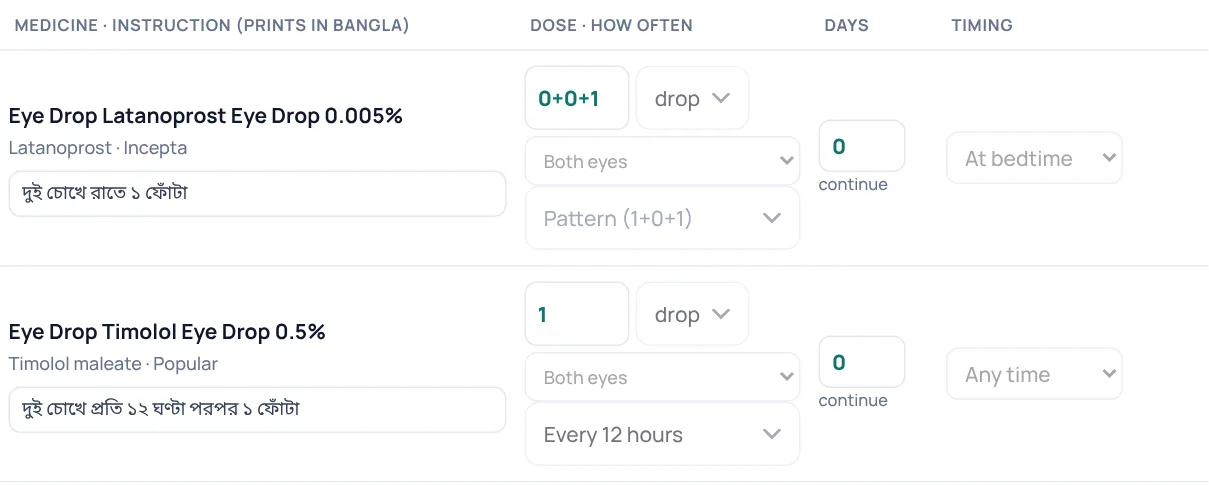
Add a drop or ointment as you add any medicine. For eye medicines you get an extra choice: Right eye, Left eye or Both eyes.
- Set the dose and how often, for example 1 drop · every 6 hours or 0+0+1.
- Before and after meals is left out for drops and ointments; choose At bedtime or Any time instead.
- The instruction prints in Bangla or English, for example দুই চোখে রাতে ১ ফোঁটা.
- Days set to 0 means continue, for long-term glaucoma drops.
Step 6: Finish and print
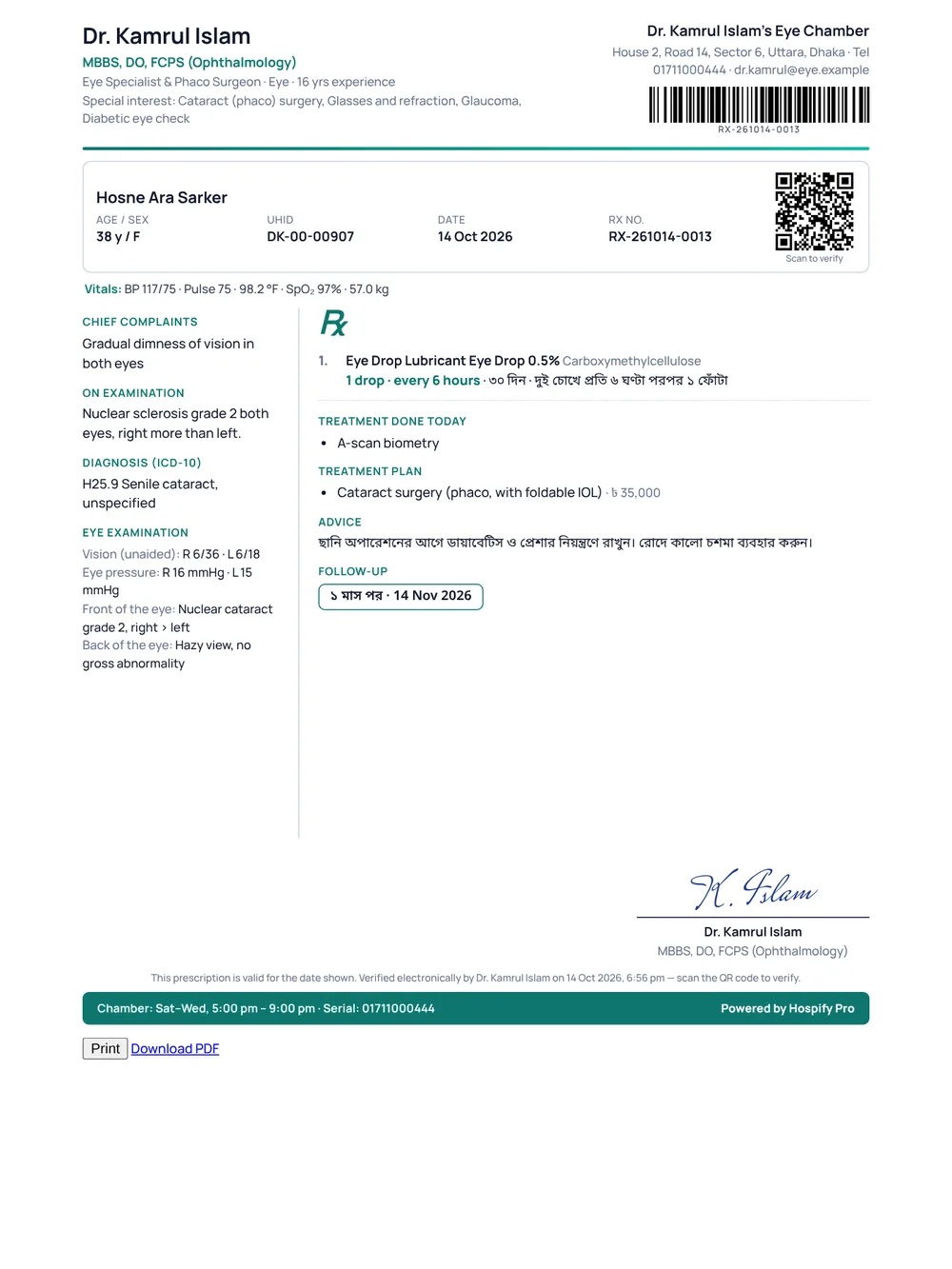
Press Finish & print prescription. The prescription shows the eye examination on the left, and the medicines, treatment, glasses table, advice and follow-up on the right.
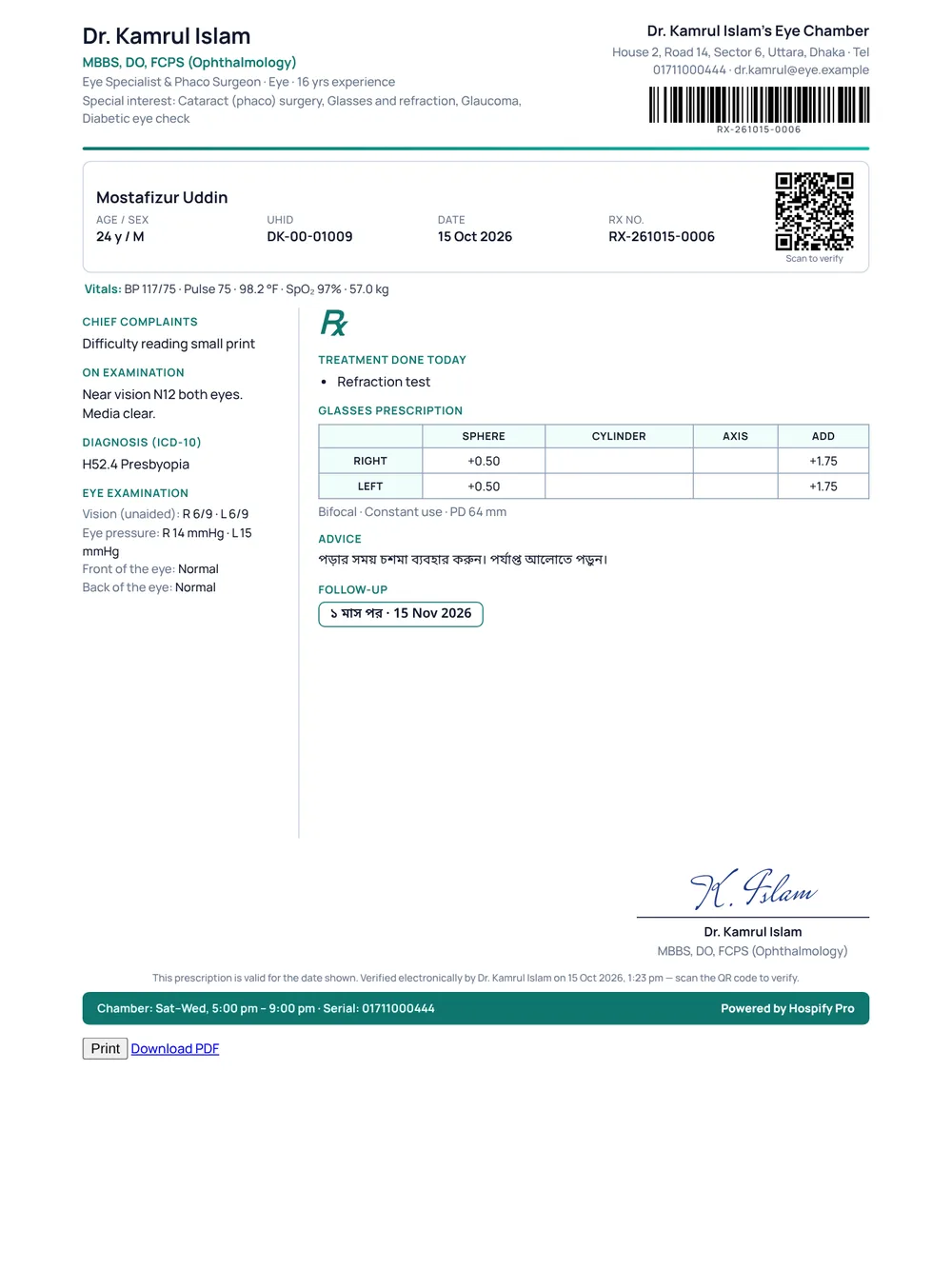
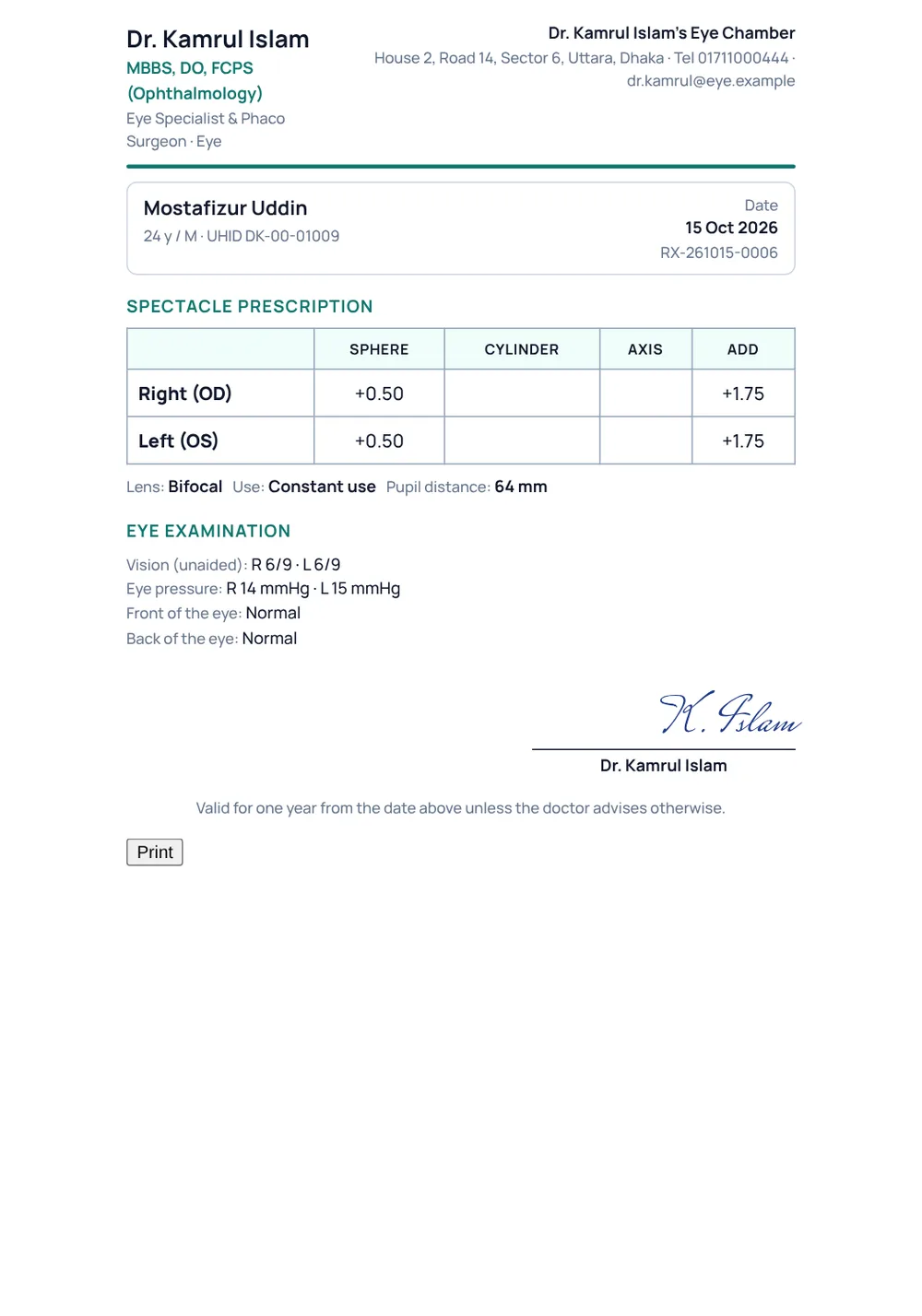
For the optician, press Print glasses prescription on the eye card. It prints a page with only the spectacle prescription, the lens, use and pupil distance, and the eye examination, signed by you.
Example: a cataract patient
A patient comes with gradual dimness in both eyes. You record vision R 6/36 and L 6/18, pressure and Nuclear cataract grade 2 in front of the eye, diagnose H25.9 Senile cataract, mark A-scan biometry as done today and Cataract surgery as planned, add a lubricant drop for both eyes and a follow-up in one month.
The suggested advice for cataract appears; tap it to add keep diabetes and blood pressure under control before surgery. The patient leaves with the surgery cost on paper, and a reminder comes before the follow-up.
Tips
- Glaucoma patients: set the drops’ days to 0 (continue) and use Repeat last on each visit, then only update the pressure. On your phone, the phone view repeats the last prescription in one tap.
- Children: for patients under 19, the vitals card shows weight and height against WHO growth standards.
- Your chamber setup: fees, chambers, assistant and booking page are in the doctor’s chamber guide.
Tips and common questions
Which vision notation does it use?
Snellen in metres: 6/6, 6/9, 6/12, 6/18, 6/24, 6/36 and 6/60, plus CF, HM, PL and NPL for very low vision.
Does the glasses prescription print on the main prescription too?
Yes. It prints in a table on the prescription, and Print glasses prescription gives a clean page of its own for the optician, without the medicines.
Can I see the patient's last eye pressure?
Yes. Each visit's examination is saved to the patient's eye record and printed on that visit's prescription. Open an earlier prescription from the patient's history to compare pressure and vision.
We are a hospital with an eye department. Do our eye doctors get this screen?
Yes. In Settings → Departments & services, set the eye department's Workspace to Eye (vision and refraction). Every doctor in that department gets the eye card; other doctors keep the general screen.
Is the eye chamber priced differently?
No. It is the same Chamber plan as a general doctor's chamber, at Tk 999 a month$19 a month.
